Set up CatalogBadge with OpenCart
OpenCart has no product API we can read, so the way in is your store’s product feed: a file at a URL that lists your products. CatalogBadge reads it on every update and publishes copies of it in which only the image links change. Nothing is installed in your store and we never write to it.
Meta’s own Facebook extension for OpenCart sends products straight to Meta without a feed file, so it gives us nothing to read. Keep it for the pixel if you use it, and turn on a feed as below.
1. Turn on a product feed
OpenCart 2 and 3: the built-in Google Base feed (free)
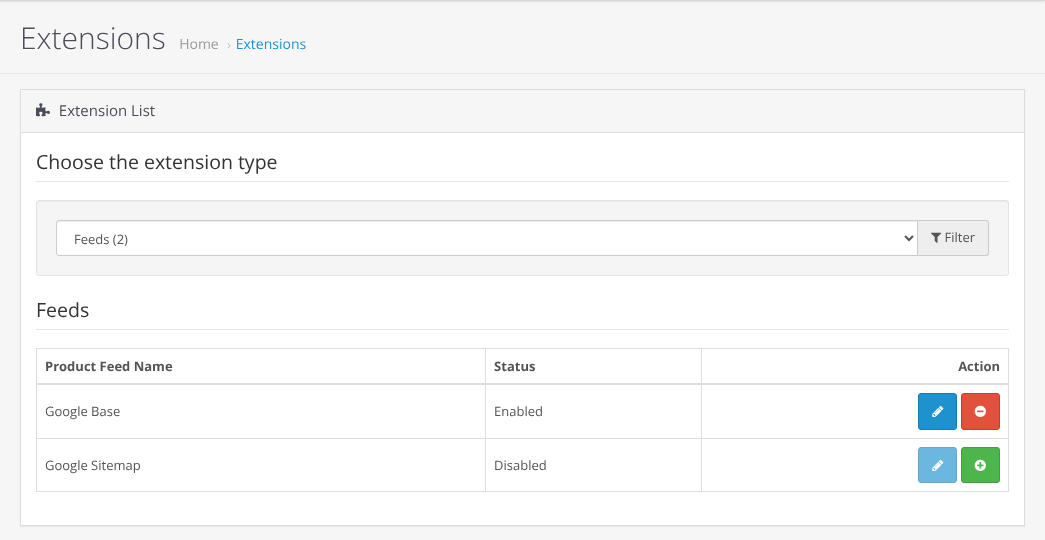
- In the admin, open Extensions, then Extensions, and choose Feeds in the type list (on OpenCart 2.0 to 2.2, Extensions, then Feeds). Install Google Base with the green button, then open it with the blue pencil.
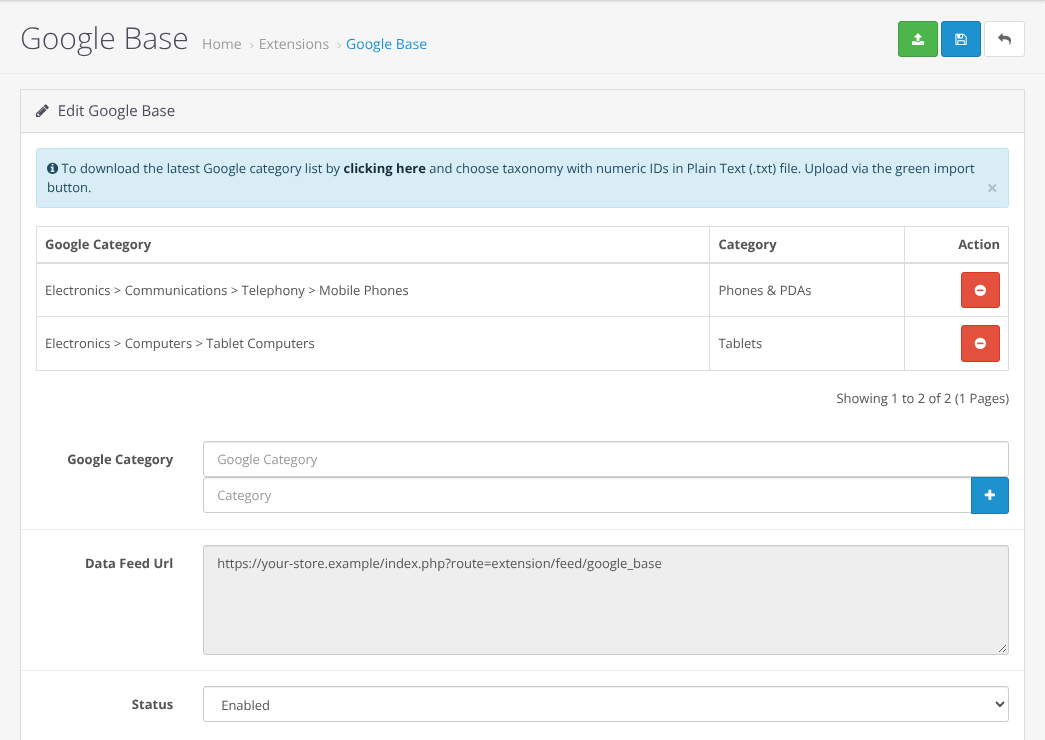
- Link your categories. Google Base lists only the products of store categories you pair with a Google category. Download Google’s product taxonomy as the plain text file with numeric IDs, upload it with the green import button, then pair each of your categories under Google Category.
- Set Status to Enabled and save. Copy the Data Feed Url. It looks like
https://your-store/index.php?route=extension/feed/google_base(on OpenCart 2.0 to 2.2,route=feed/google_base).
- In System, Settings, your store, tab Server, set Display Errors to No. On PHP 8, OpenCart 3.0.4.0 otherwise prints a warning in front of the feed and the file stops being valid XML.
- Open the URL in your browser: you should see your products as XML.
What the built-in feed leaves out
We checked these on OpenCart 3.0.4.0. They matter because your prices go onto images.
- Currency. It writes the price with no currency code, and only in US dollars, euros or pounds. A store that sells in another currency, such as SAR, AED or KWD, gets its prices converted to US dollars. If your shop sells in any other currency, do not use the built-in feed for CatalogBadge: use an extension as below. The setup wizard refuses the built-in feed in any currency but these three, so a converted price never reaches an image.
- Sale prices. A product special replaces the price, and there is no
sale_price, so images show the offer price without a discount badge. - Products. Only products in paired categories and with a description are listed.
OpenCart 4, or a store in another currency: a feed extension
OpenCart 4 ships no feed. Open the Product Feeds category of the OpenCart Marketplace (also under Extensions, Marketplace in your admin) and pick an extension that:
- publishes the feed at a URL (not only an upload to Google Merchant Center);
- writes a Google Shopping XML or a Meta catalog CSV, with the currency code in
price, such as249.00 SAR; - writes the regular price in
priceand the special insale_price; - regenerates the file on a schedule, so the file we read is current.
Most of them are a one-off purchase of about 10 to 40 US dollars; ask the vendor about the four points above before you buy.
2. Add the feed to CatalogBadge
- Create your account on app.catalogbadge.com, then choose Onboard a store.
- Feed: paste the feed URL and choose Check feed. We read it and show three sample products with their prices, the platform we recognised, and anything Meta would reject. Nothing is saved yet.
- Compare the sample prices with your shop. If a price has no currency code in the feed, we use the currency under Prices read as; change it there if the samples look wrong.
- Store: confirm the store name, the platform (OpenCart), country, currency, time zone and the language of the feed.
- Template, Brand and QA preview: pick your designs and check your products as finished images.
- Feed URLs: copy your feed URLs, then choose Go live.
3. Put your branded feed where your ads read it
Your feed URLs are on your store’s Overview page under Feed URLs, each with a copy button. Treat them like a password: anyone with the URL can read the feed.
| Where your ads run | Feed | Where to paste it |
|---|---|---|
| Meta (Facebook and Instagram) | meta-full.xml | Commerce Manager, your catalog, Data sources. If the catalog already reads your store’s feed URL, edit that data source and replace the URL with ours, so your ad sets keep the same catalog. Otherwise add a scheduled data feed with our URL. Steps: Meta guide. |
| TikTok | tiktok-full.csv | TikTok Ads Manager, Assets, Catalogs: add products with a data feed schedule, set it to hourly and the update method to Replace, so a product that leaves the feed leaves the catalog. Steps: TikTok guide. |
| Snapchat | snap-full.xml | Snapchat Ads Manager, Catalogs: add a product source with a scheduled feed URL and a daily schedule. Steps: Snapchat guide. |
pinterest-full.xml | First turn on the Pinterest 2:3 size in Rules, under Sizes and language. Then in Pinterest Ads, Catalogs, add a data source with our URL. Pinterest reads it once a day. Steps: Pinterest guide. |
Each platform picks up the branded images on its next fetch; the first one can take a few hours. Never delete and re-create a catalog to switch: your ads keep pointing at the old one.
4. When your feed is missing a field
| Your feed has no… | What happens | What to do |
|---|---|---|
Sale price (sale_price) | Images show the price without a discount badge. We never work out a discount the feed does not state. | Use a feed or extension that writes the regular price in price and the offer in sale_price. |
| Currency code on the price | Prices are read in the currency you confirm in the wizard. | Make sure the feed’s prices really are in your store’s currency: compare the sample prices with your shop. |
| ID, title, link, photo or a readable price | That product keeps its original image in our feeds, so your catalog never loses it. | Fill the field in your store; the next update picks it up. |
| Standard column names | We do not guess which column is the price, because a wrong guess puts a wrong price on an image. | Open the Column map on your store’s Overview page and say which column holds each field (input feeds). |
| Availability | Products count as in stock. | Add availability if you sell out often. |
| Brand, GTIN or MPN | Images are made as usual; Meta warns that it needs one of them. | Add a brand to your products; your store name works for your own goods. |
Questions about your extension’s export? Write to hello@catalogbadge.com.