Connect Magento to CatalogBadge
CatalogBadge can read your Magento 2 or Adobe Commerce catalog straight from Magento’s API, with an access token you create once in your admin. The token can only read products, categories and your store settings: we never write to your store, your catalog or your ad account, and nothing is installed. If your store has an Arabic and an English store view, each product gets both titles, so your Arabic and English images each show their own name.
Already sending Meta a feed from an extension such as Amasty, Mageworx or Wyomind? That feed URL keeps working (see the feed guide). The key connection replaces it only when your product ids stay the same, which they do for those extensions: both use your SKUs.
Before you start
- Magento 2.3 or later, or Adobe Commerce, on an address that starts with https.
- An admin user who may create integrations and change the configuration.
- A CatalogBadge account. A new store is added straight from the token; a store you already added with a feed URL (the feed guide) switches to the token on its Connection page.
1. Allow integration tokens (Magento 2.4.4 and later)
Since 2.4.4, Magento only accepts an integration’s access token on its own when you allow it. Open Stores, Configuration, Services, OAuth, expand Consumer Settings and set Allow OAuth Access Tokens to be used as standalone Bearer tokens to Yes. Save the configuration. On 2.4.3 and earlier there is nothing to change.
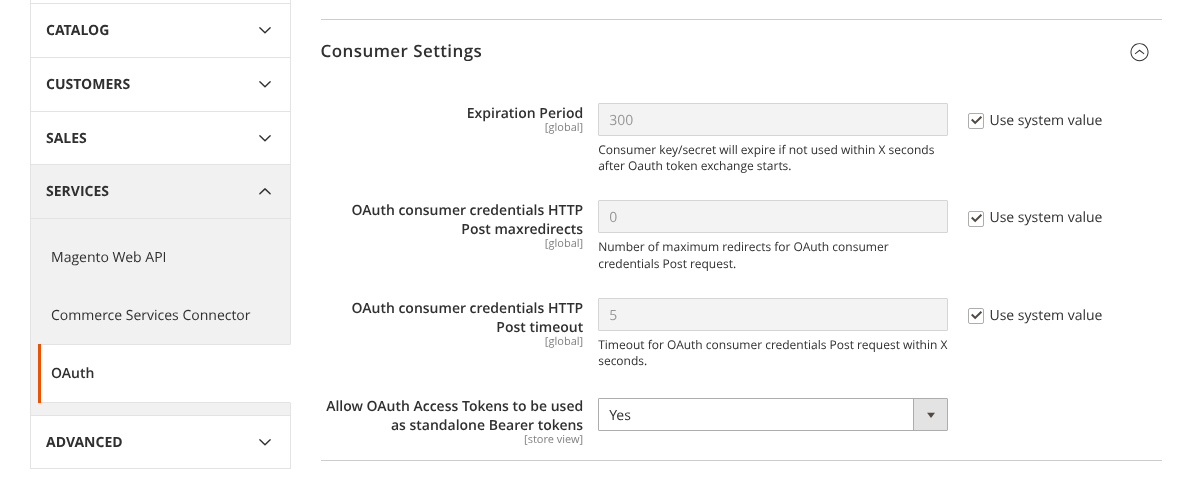
2. Create a read-only integration
- Open System, Extensions, Integrations and choose Add New Integration.
- Name: CatalogBadge. Leave Email, Callback URL and Identity link URL empty. Type your own admin password under Your Password.
- Open the API tab, set Resource Access to Custom and tick only these: Catalog, Inventory, Products and Categories; and Stores, Settings, All Stores. Nothing else: we only read.
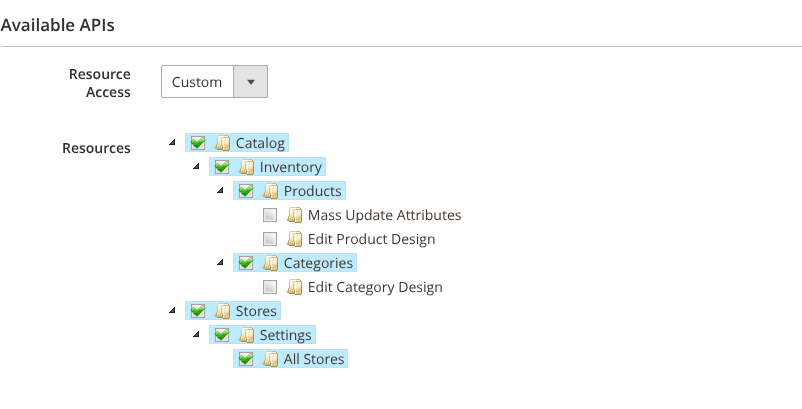
- Choose Save, then Activate next to CatalogBadge in the list, and Allow. Magento shows four values; copy the Access Token (not the consumer key or either secret). You can see it again later by opening the integration: it is under Integration Details.
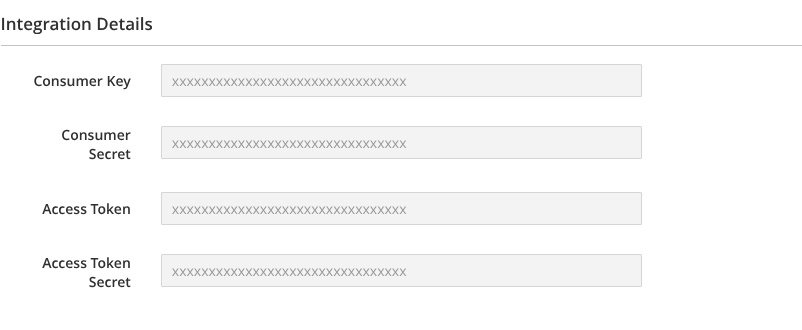
3. Paste it into CatalogBadge
- Sign in at app.catalogbadge.com. For a new store, choose Add a store and open No feed URL? Connect Magento with a key instead. For a store you already have, open it, then its Connection page, and choose Magento.
- Store address: the https address your store opens on, such as
https://www.your-store.com. Use the address without a redirect: we never follow one, so your token cannot travel to another host. - Access token: the token from step 2.
- Arabic and English store view codes: leave both empty unless your Magento runs several websites. We pick the store view whose locale is Arabic and the one whose locale is English in one website. With several websites, type the codes (Stores, All Stores, the store view’s Code), such as
ar_saanden_sa. - For a new store, also pick its country and image language; the currency comes from your store. Choose Test the key and add the store (a new store) or Test and connect (a store you have). We read your store views and one product with the token before anything is saved; if Magento refuses it, nothing is stored and the page says why.
4. What happens next
A new store reads your catalog through the token from its first update, with nothing else to set up. For a store that had a feed URL, the next update reads your catalog through the token once and compares its product ids with the products in your published feeds. When at least 95 % of them are still there, your store switches to the connection and your feed URLs stay the same, so nothing changes in Meta, TikTok, Snapchat or Pinterest apart from fresher data. Below 95 % your store keeps its feed and the Connection page says how many ids matched. That protects your products’ history and ad delivery in Meta.
What we read from Magento:
- every enabled simple product that is visible on its own or is an option of a configurable product, with your SKU as the id and the configurable product’s SKU as the group;
- the name in your Arabic and your English store view, the description and the photos;
- the price and the special price, the special price only while today is between its from and to dates in your store’s timezone;
- whether the product is in stock, and its category for the product type.
Catalog price rules are not read. Magento keeps them out of its product API, so a product discounted only by a catalog price rule shows its regular price with no discount badge. If your sales run on catalog price rules, keep your feed extension’s URL as your store’s feed, because those extensions write the discounted price. Tier and customer group prices are not read either.
A big catalog takes a while: Magento answers about a hundred products a second. Updates run in the background and your published feeds stay as they are until a read has finished.
5. Put your branded feed where your ads read it
Your feed URLs are on your store’s Overview page under Feed URLs, each with a copy button. Treat them like a password: anyone with the URL can read the feed.
| Where your ads run | Feed | Where to paste it |
|---|---|---|
| Meta (Facebook and Instagram) | meta-full.xml | Commerce Manager, your catalog, Data sources. If the catalog already reads your store’s feed URL, edit that data source and replace the URL with ours, so your ad sets keep the same catalog. Otherwise add a scheduled data feed with our URL. Steps: Meta guide. |
| TikTok | tiktok-full.csv | TikTok Ads Manager, Assets, Catalogs: add products with a data feed schedule, set it to hourly and the update method to Replace, so a product that leaves the feed leaves the catalog. Steps: TikTok guide. |
| Snapchat | snap-full.xml | Snapchat Ads Manager, Catalogs: add a product source with a scheduled feed URL and a daily schedule. Steps: Snapchat guide. |
pinterest-full.xml | First turn on the Pinterest 2:3 size in Rules, under Sizes and language. Then in Pinterest Ads, Catalogs, add a data source with our URL. Pinterest reads it once a day. Steps: Pinterest guide. |
Each platform picks up the branded images on its next fetch; the first one can take a few hours. Never delete and re-create a catalog to switch: your ads keep pointing at the old one.
Disconnecting
Choose Disconnect on the Connection page: we delete the token at once, and your published feeds stay as they are until you give the store a feed URL again. To be sure, also delete the CatalogBadge integration in Magento (System, Extensions, Integrations), which revokes the token for good.
Questions or a Magento that answers differently? Write to hello@catalogbadge.com.