WooCommerce to Pinterest: branded catalog ad images
WooCommerce stores get branded Pinterest images by giving CatalogBadge the URL of their feed plugin, turning on the 2:3 size and adding our pinterest-full.xml as a Pinterest catalog data source. Pinterest reads the tall image made for Pins. CatalogBadge plans start at $49 a month in US dollars, and your feeds carry your own photos until a plan or free trial is active.
Step 1: get your product feed from WooCommerce
- WooCommerce has no product feed of its own, so install a feed plugin such as Product Feed PRO or CTX Feed from Plugins, then Add New.
- Create a feed in Google Shopping or Facebook format, XML or CSV, with each product’s id, title, price, sale price, availability, link, image and brand.
- Set the plugin to refresh the file hourly or daily, then copy its URL, usually under /wp-content/uploads/ on your domain.
A CSV export may call the price regular_price and stock instock or outofstock. Tell us which column is which in the Column map; a wrong guess could put a wrong price on an image, so we never guess.
Step 2: add the feed to CatalogBadge
Create your account, choose Onboard a store and paste the feed URL. The wizard shows sample products with their prices before anything is saved, then you pick your designs, check them in the preview and go live. Create your account
The WooCommerce setup guide has every screen of the wizard.
Step 3: put pinterest-full.xml into Pinterest
Which file you paste depends on how your Pinterest catalog gets products today:
| Your Pinterest catalog today | Paste | What you do |
|---|---|---|
| Reads the plugin’s URL as a data source | pinterest-full.xml | Replace the plugin’s URL with ours. |
| Synced by the Pinterest for WooCommerce extension | pinterest-full.xml | Use our file as the data source of the catalog your ads use instead of the extension’s sync, and write to us first if that catalog runs ads. |
In Pinterest
- In CatalogBadge, open Rules, then Sizes and language, and turn on the Pinterest 2:3 size. Without it the Pinterest file carries your own photos.
- In Pinterest Ads, open Catalogs and add a data source.
- Paste your pinterest-full.xml URL. Pinterest also takes the CSV twin; use one of them.
- Pinterest reads the file once a day, so a price change reaches Pinterest on its next daily fetch.
The image Pinterest gets
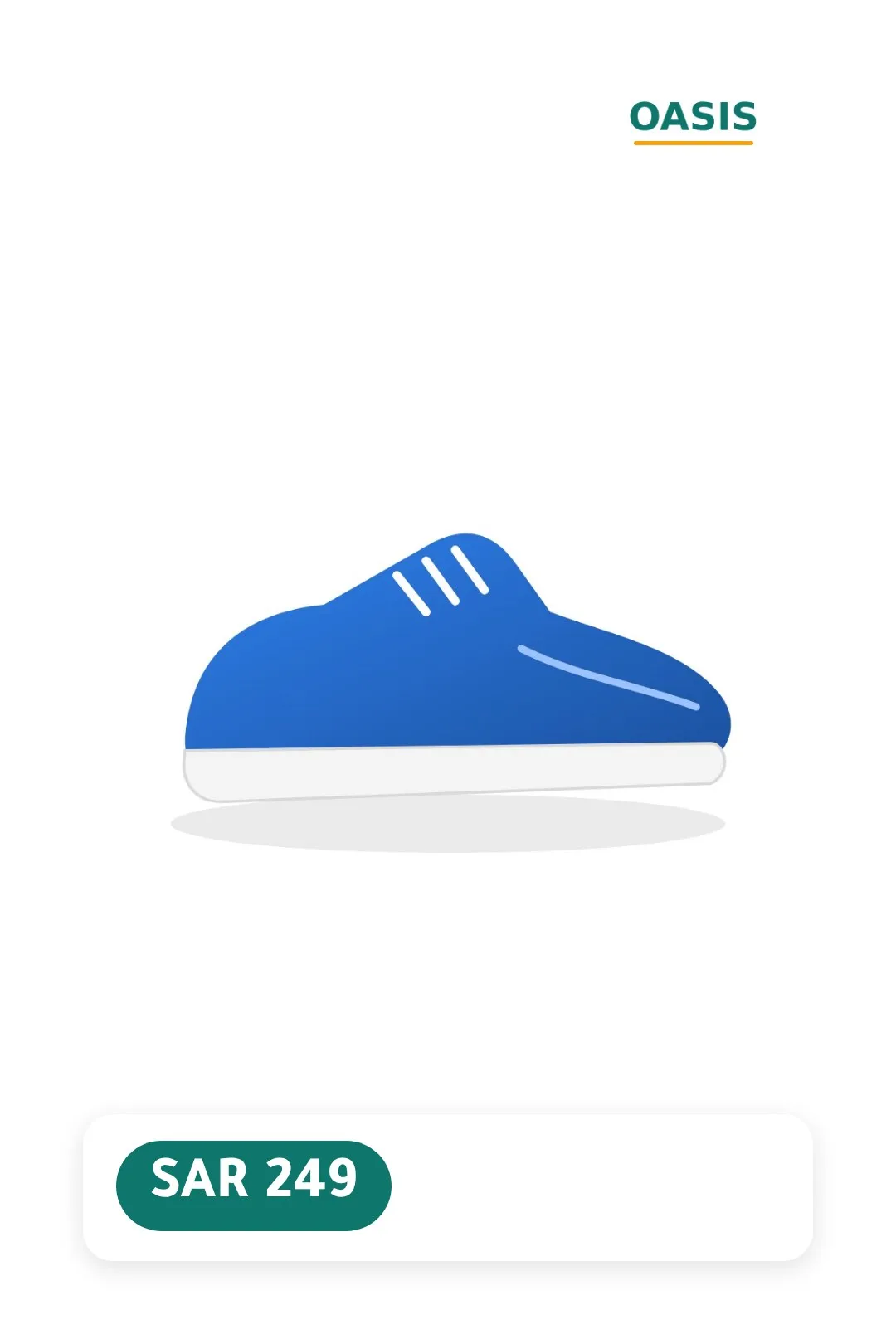
Pinterest gets only the 2:3 render, at 1080 × 1620, never another size. Its ad rules ask for at least 1000 × 1500 and refuse images packed with text and discounts over 90 %, so a calm design like the one shown suits it best. Additional images are your own photos, at most ten.
Watch out
Pinterest asks for a product link that opens the same product. Feed plugins sometimes write the parent product’s link for every variation; check that your plugin links each variation to its own page.
Check that it worked
- The Overview page lists the products in the Pinterest file and when Pinterest last fetched it.
- In Pinterest Ads, the data source shows its last update and any errors.
- Open a Pin of a product you expect to be branded and check the 2:3 image.
Questions
Can I keep the Pinterest tag from the extension?
Yes. The tag reports visits and checkouts on your site; it does not depend on where the catalog gets its products, as long as the ids match.
My plugin writes the feed only once a day. Is that enough?
Your images can only be as fresh as the file we read. Set the plugin to hourly if it allows; we check your feed on every sync and draw only what changed.
Stuck on a step? Write to us with your store name and the guide you followed. hello@catalogbadge.com