Shopify to Meta: branded catalog ad images
Shopify stores get branded Meta catalog ad images by reading their products through a Shopify feed app into CatalogBadge and adding our meta-supp.csv as a supplementary feed on the catalog the Facebook and Instagram channel syncs. Shopify keeps sending prices and stock. CatalogBadge plans start at $49 a month in US dollars, and your feeds carry your own photos until a plan or free trial is active.
Step 1: get your product feed from Shopify
- The Facebook and Instagram sales channel syncs a catalog without a readable feed URL, so install a product feed app from the Shopify App Store.
- Create a feed with each product’s id, title, price, compare-at price, availability, link and image, in Meta or Google Shopping format.
- Use the same ids your sales channels already give your products, then copy the feed URL.
Each variant listed as its own item, a colour or a size, gets its own image and counts as its own product on your plan.
Step 2: add the feed to CatalogBadge
Create your account, choose Onboard a store and paste the feed URL. The wizard shows sample products with their prices before anything is saved, then you pick your designs, check them in the preview and go live. Create your account
The Shopify setup guide has every screen of the wizard.
Step 3: put meta-supp.csv / meta-full.xml into Meta
Which file you paste depends on how your Meta catalog gets products today:
| Your Meta catalog today | Paste | What you do |
|---|---|---|
| Synced by the Facebook and Instagram sales channel | meta-supp.csv | Keep the channel and add our file as a supplementary feed on its data source. |
| Reads a feed app’s URL as a scheduled data feed | meta-full.xml | Replace that URL with ours. |
In Meta
- Open Commerce Manager, choose the catalog your Facebook and Instagram catalog ads use, then open Catalog and Data sources.
- Make the change from the table above on that catalog: swap the scheduled data feed URL, or add a supplementary feed to the source your platform created.
- Set the schedule to hourly and save. Choose Upload now on a data feed for a first fetch straight away.
- Keep the same catalog. Your ad sets point at it, so deleting it and starting again would cut them off.
The image Meta gets
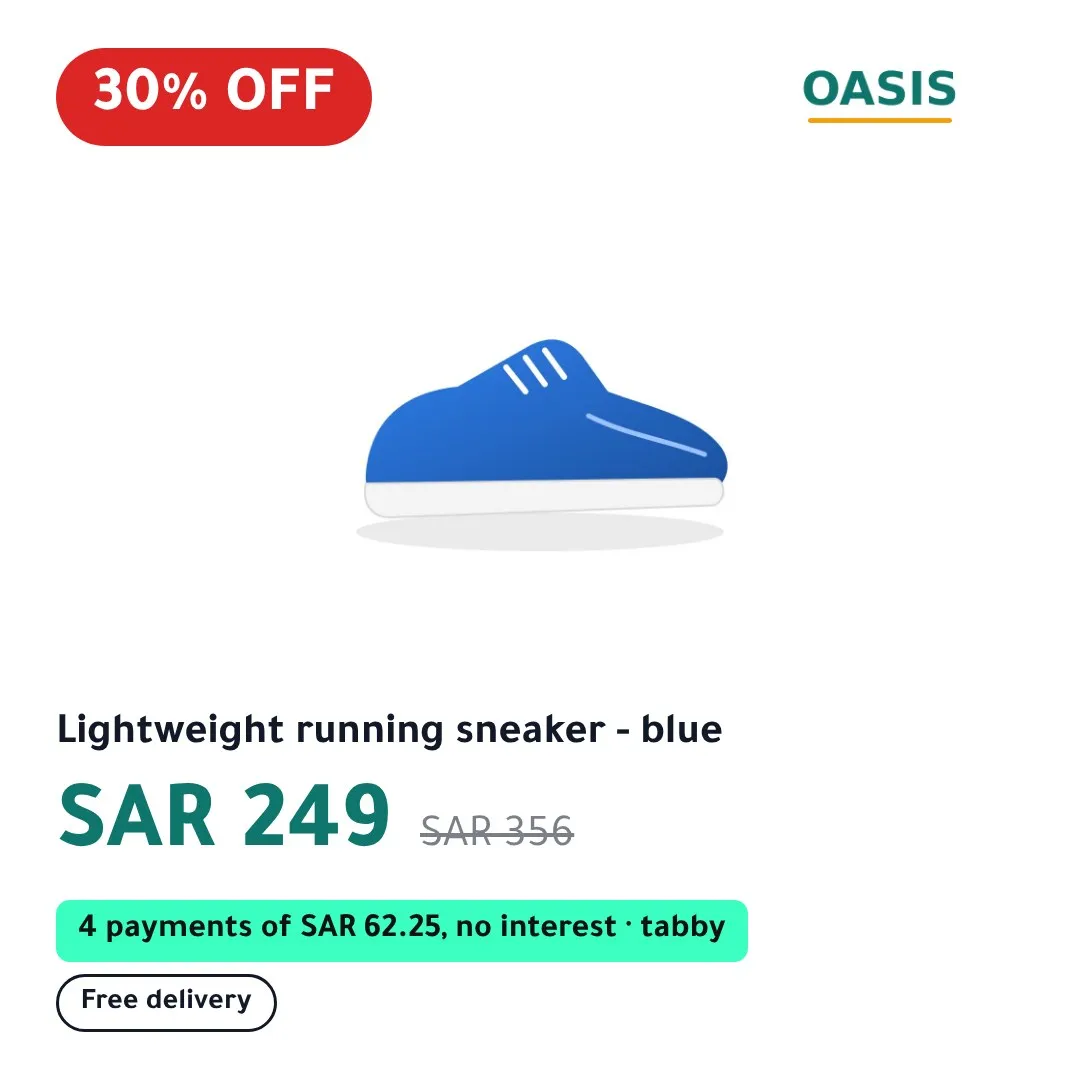
Meta takes the 1:1 image as the main picture of each product. Turn on 4:5 and 9:16 in Rules and they go in as additional images for feed and Stories placements. A product whose image is not drawn yet keeps its own photo, never an older render that shows a different price.
Watch out
The sales channel can give Meta ids in a different form from your feed app, for example a variant id where the app writes a product id. A supplementary row with an id Meta does not know is ignored, so compare a few products in Commerce Manager with the app’s feed before you go live.
Check that it worked
- The store’s Overview page in CatalogBadge shows when Meta last fetched each file.
- In Commerce Manager, open Items and a product you expect to be branded: its image address starts with https://img.catalogbadge.com/.
- The first fetch can take a few hours to show in Commerce Manager and in ads.
Questions
What happens to products the feed app leaves out?
Nothing. A supplementary feed can only change products the catalog already has, so those keep the photos the sales channel sent.
Do I keep the Facebook and Instagram sales channel?
Yes. It keeps sending prices and stock to Meta. CatalogBadge only reads your products through the feed app and changes the images.
Stuck on a step? Write to us with your store name and the guide you followed. hello@catalogbadge.com