Zid to Snapchat: branded catalog ad images
Zid stores get branded Snapchat catalog ad images by giving CatalogBadge their Zid product feeds link and using our snap-full.xml as the product source of a Snapchat catalog. Snapchat has no way to add our images on top of the Zid app’s catalog. CatalogBadge plans start at $49 a month in US dollars, and your feeds carry your own photos until a plan or free trial is active.
Step 1: get your product feed from Zid
- In your Zid dashboard, open Online store, then SEO, then Product feeds.
- Choose a platform, a language your store has switched on and the currency, and generate the link. Zid writes the same Google RSS file on your own domain whichever platform you pick.
- Start with the language most of your titles are written in, usually Arabic, and copy the link.
In Zid’s link each product’s id is its Zid product id, a long UUID rather than the SKU, and the brand column holds your store name. Both pass to every channel unchanged.
Step 2: add the feed to CatalogBadge
Create your account, choose Onboard a store and paste the feed URL. The wizard shows sample products with their prices before anything is saved, then you pick your designs, check them in the preview and go live. Create your account
The Zid setup guide has every screen of the wizard.
Step 3: put snap-full.xml into Snapchat
Which file you paste depends on how your Snapchat catalog gets products today:
| Your Snapchat catalog today | Paste | What you do |
|---|---|---|
| Filled by Zid’s Snapchat app | snap-full.xml | That catalog takes nothing on top. Write to us before you change one that runs ads; the usual route is a catalog that reads our file. |
| Reads the Zid product feeds link | snap-full.xml | Replace that link with ours. |
In Snapchat
- In Snapchat Ads Manager, open Catalogs and choose the catalog your dynamic ads use.
- Open its product source and choose a scheduled feed URL.
- Paste your snap-full.xml URL, in place of the URL it reads today if it has one.
- Pick the most frequent schedule Snapchat offers and save. To undo, paste the old URL back.
The image Snapchat gets
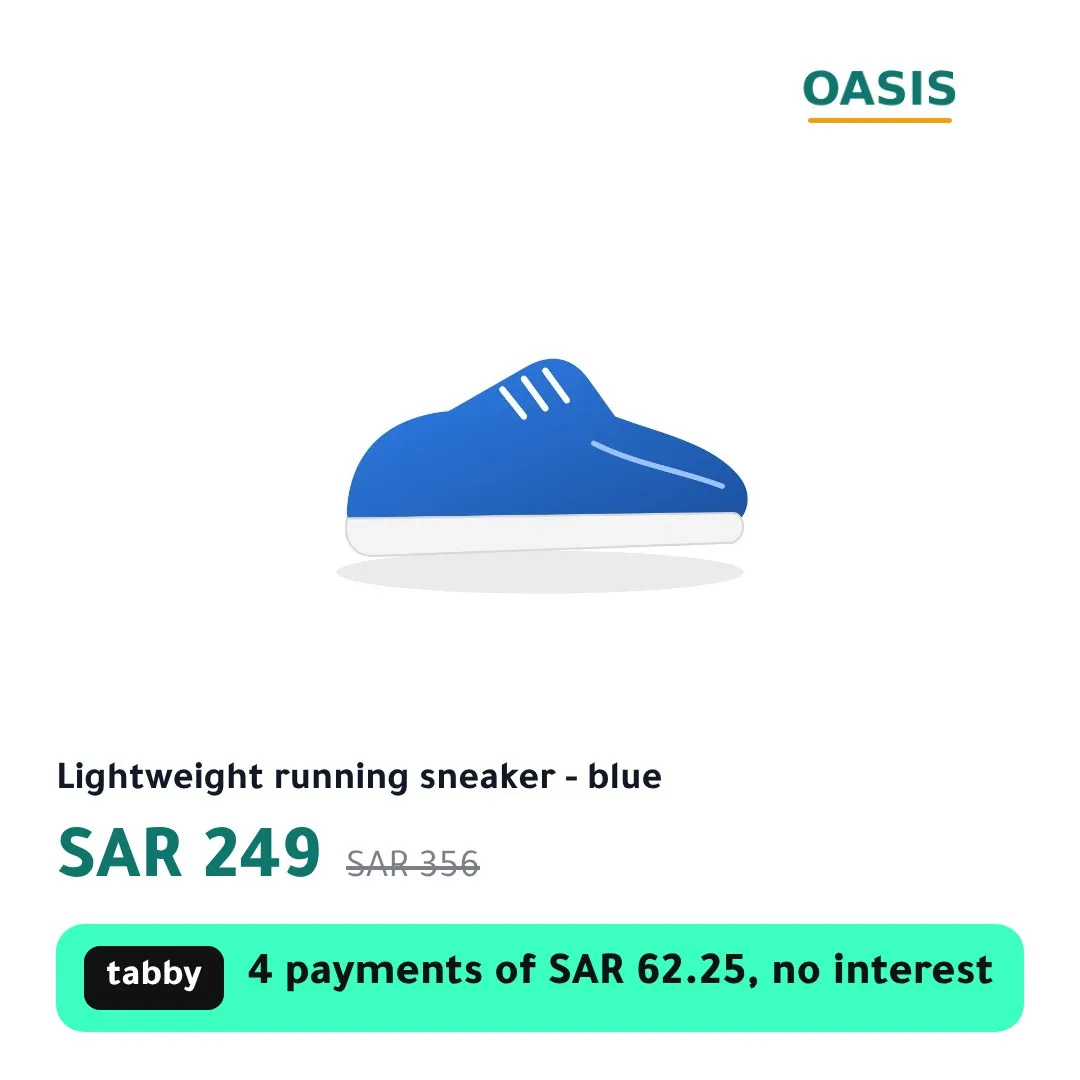
Snapchat gets the 1:1 image. Our file carries every field of your feed unchanged apart from the image links, so titles, prices and product sets stay as they were. Snapchat has no supplementary feed, which is why it always takes the full file.
Watch out
Moving ads from the Zid app’s catalog to one that reads our file means new product sets on that catalog. Plan the switch for a quiet day and keep the old ads running until the new catalog has its first upload.
Selling in Saudi Arabia
Prices stay in riyals exactly as your feed writes them, the discount badge rounds down, and a tabby or tamara line can show the instalment on the image.
Season presets for Saudi Arabia, such as White Friday, Ramadan, Founding Day and Saudi National Day, switch your designs on the dates you choose.
Check that it worked
- The Overview page shows when Snapchat last fetched snap-full.xml.
- In Ads Manager, the catalog shows its last upload and any errors.
- A branded product’s image address starts with https://img.catalogbadge.com/.
Questions
Will my Snapchat pixel still match products?
It will when the ids in Zid’s link, the Zid product id, are the ones Zid’s Snapchat app used. Check a few before you move your ads.
Do the ids match the ones Zid’s Meta and Snapchat apps use?
Zid’s link names each product by its Zid product id, a UUID, not the SKU. Open two or three products in your Meta or Snapchat catalog: when their ids are the same UUIDs, our files line up with the catalog the Zid app built.
Stuck on a step? Write to us with your store name and the guide you followed. hello@catalogbadge.com