Catalog ad creative · Guide
Supplementary feed or full feed? Getting branded images into a Meta catalog
Two ways to put branded product images in your Meta catalog without rebuilding it, which one fits your store, and how to undo either in a minute.
By CatalogBadge team · Published · 3 min read
Your Meta catalog already exists. Your ad sets point at it, your product sets are built on it, and the last thing you want is to start again. The good news is that you do not have to: a catalog can take new images in one of two ways, and which one you use depends only on how the catalog gets its products today.
First, find out what feeds your catalog
Open Commerce Manager, choose your catalog, then Catalog → Data sources. You will see one of two things:
- A data feed: a URL and a schedule, for example a file from Magento, WooCommerce, a Salla catalog link or a feed app. Meta downloads that file on the schedule and rebuilds the catalog from it.
- A partner integration: the platform’s name, for example Shopify’s Facebook and Instagram channel or a Salla or Zid integration. The platform pushes products into the catalog itself, and there is no file for you to replace.
That one screen decides everything that follows.
Option A: a full feed, for catalogs that read a file
If your catalog reads a data feed, you swap its URL for one that carries the same products with new image links. In CatalogBadge that file is meta-full.xml: every product and every field you sent, unchanged, except that image_link points at the branded image.
Because every other field passes through untouched, your prices, stock, titles, categories and product sets stay exactly as they were. To undo it, paste your old URL back.
Set the schedule to hourly. Meta only learns about a new image when it fetches the feed again, so the schedule is the main delay between a price change in your store and the new image in your ads.
Option B: a supplementary feed, for catalogs filled by an integration
If a platform integration fills your catalog, you cannot replace its feed, but you can add a supplementary feed next to it. A supplementary feed only overrides the fields it contains for products the catalog already has. It cannot add products, and it cannot change prices or stock.
CatalogBadge’s supplementary file is meta-supp.csv, and it holds just three columns: id, image_link and additional_image_link. Your platform keeps sending everything else. To undo it, delete the supplementary feed and Meta goes back to your platform’s images on its next sync.
One thing to check: the ids in a supplementary feed must match the ids your platform gives the products in Meta. If they do not, Meta silently ignores those rows. Open a product under Catalog → Items and compare its id with the one in your store’s feed before you add the file.
Which one should you pick?
| Your catalog today | Use |
|---|---|
| Reads a URL on a schedule | meta-full.xml, in place of that URL |
| Filled by Shopify, Salla, Zid or another integration | meta-supp.csv, as a supplementary feed |
| Not sure | Check Data sources: a URL means full, a platform name means supplementary |
What the image looks like, and what it never says
Here is the same product as it arrives in a store’s feed and as it leaves in ours, on the Sale template:

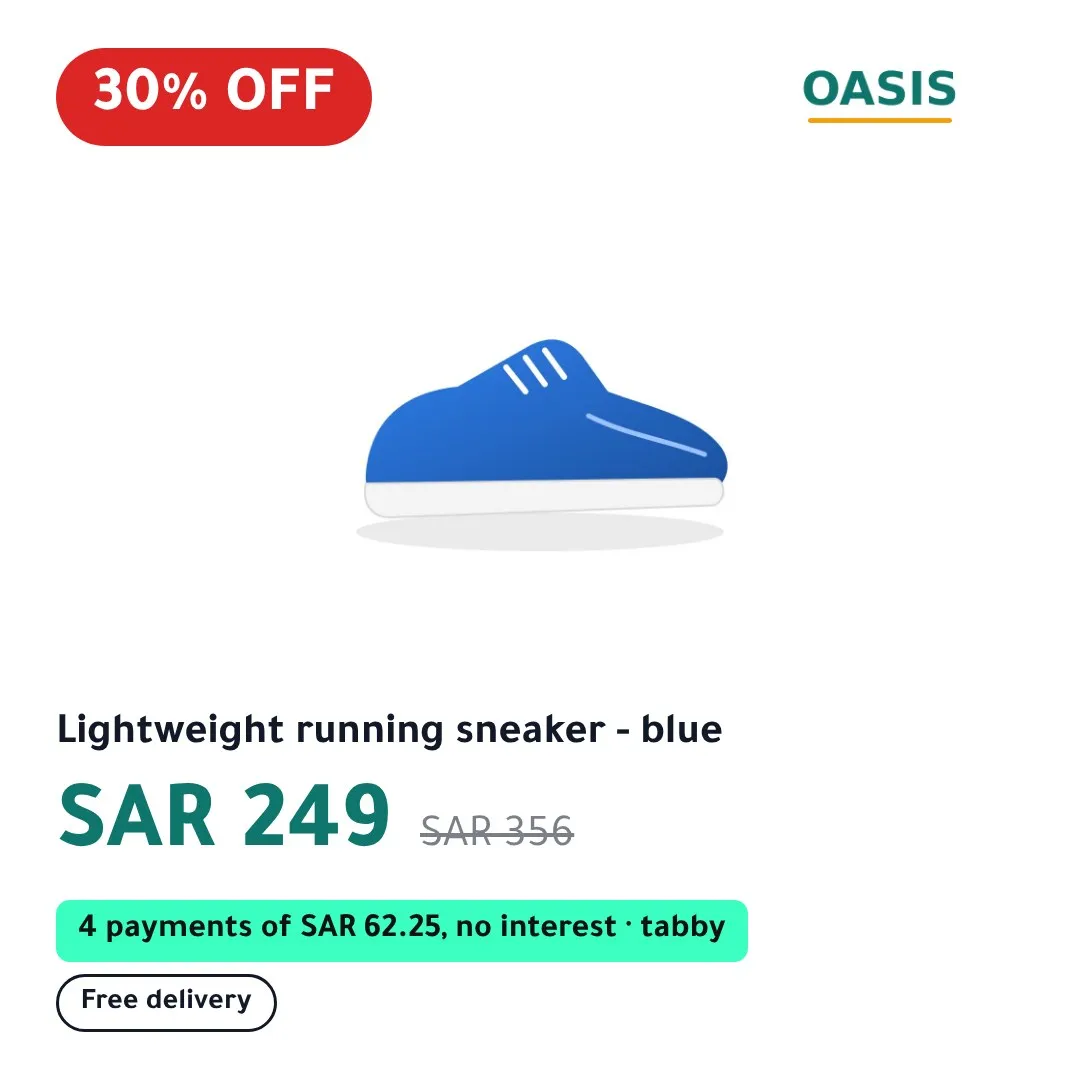
Two rules keep that image honest, whichever feed you use:
- A product whose image is not ready keeps its own photo. When a price, sale or title changes, the feed points at your original photo until the new image exists. It never points at an older image that shows an older price.
- A new image always gets a new address. Meta downloads an image again only when its URL changes, so every image we draw gets its own permanent URL. An unchanged product keeps its URL and Meta does not download it again.
Right after you switch, expect the supplementary file to have few rows or none: it only lists products whose branded image already exists, and it fills as the images are drawn.
The short version
Look at Data sources once. A URL there means you replace it with the full feed; a platform name means you add the supplementary feed. Either way you keep your catalog, your ad sets and your product sets, and either way you can go back in a minute. The Meta setup guide has every click.
Read next
Feed problems
Why your catalog ad still shows the old image, and when that is on purpose
The five reasons a Meta or Snapchat catalog keeps an old product image after a change, how to tell them apart, and the one that is a safety feature.
· 3 min read
Seasonal playbooks
Ramadan 2027 catalog ads: a setup checklist for Gulf stores
What to prepare before Ramadan 2027 so your catalog ads switch to the right designs on time, in Arabic and English, without a late-night manual change.
· 3 min read
See your own products as branded catalog ads before anything goes live.
Get started